
Moderated usability test
Sit beside one person, give them a real task, stay quiet, and watch where your service helps them and where it gets in the way.
- Time
- 45 min
- People
- 2–3
- Kind of work
- Test

In short
A moderated usability test is a session where a facilitator watches one participant try realistic tasks on a service, form or prototype, without giving hints. You write each task and its success criterion in advance, observe what happens, then compare what you saw with what you expected. Five sessions usually reveal the biggest problems.
What it is
In a moderated usability test, you sit with one person at a time while they try to do something real with your service: renew a licence, book an appointment, find a fee. You read out a task, then you watch. You do not explain the screen or rescue them when they get stuck. Their hesitation, wrong turns and workarounds are the data.
It is called moderated because a facilitator is present, in the room or on a video call, and can ask follow-up questions after each task. That makes it slower than a survey, but far richer. You see the reasons behind each failure as well as the failure itself.
When to use it
Use it when
- You have a prototype, a live page or a paper form and want to know whether people can actually complete the main tasks.
- Complaints or call volumes tell you something is wrong but not where in the journey it breaks.
- The team disagrees about a design and needs evidence from people who will really use it.
- You are about to launch a change and want to catch the worst problems while they are still cheap to fix.
Skip it when
- You need numbers about how many people do something; use analytics or an A/B experiment plan instead.
- You do not yet know what people are trying to achieve; start with stakeholder interviews or contextual observation.
- You cannot reach anyone who resembles your real users; testing only with colleagues will mislead you.
You need
- Time
- About 45 minutes per session, plus an hour to prepare tasks and an hour to review findings after a round of five.
- People
- One facilitator, one participant at a time, and ideally one note-taker or observer who stays silent.
- Materials
- The prototype, page or form; a task sheet; the worksheet with Task, Expected success, Observation and Result; consent wording; screen recording if the participant agrees.
How to run it
Step 1: Pick the tasks that matter most
Choose three to five tasks that represent why people come to the service. Write each one as a short scenario in the participant's language, such as "Your shop licence expires next week. Renew it." Avoid words that appear on the buttons, or you will be testing whether people can match words.
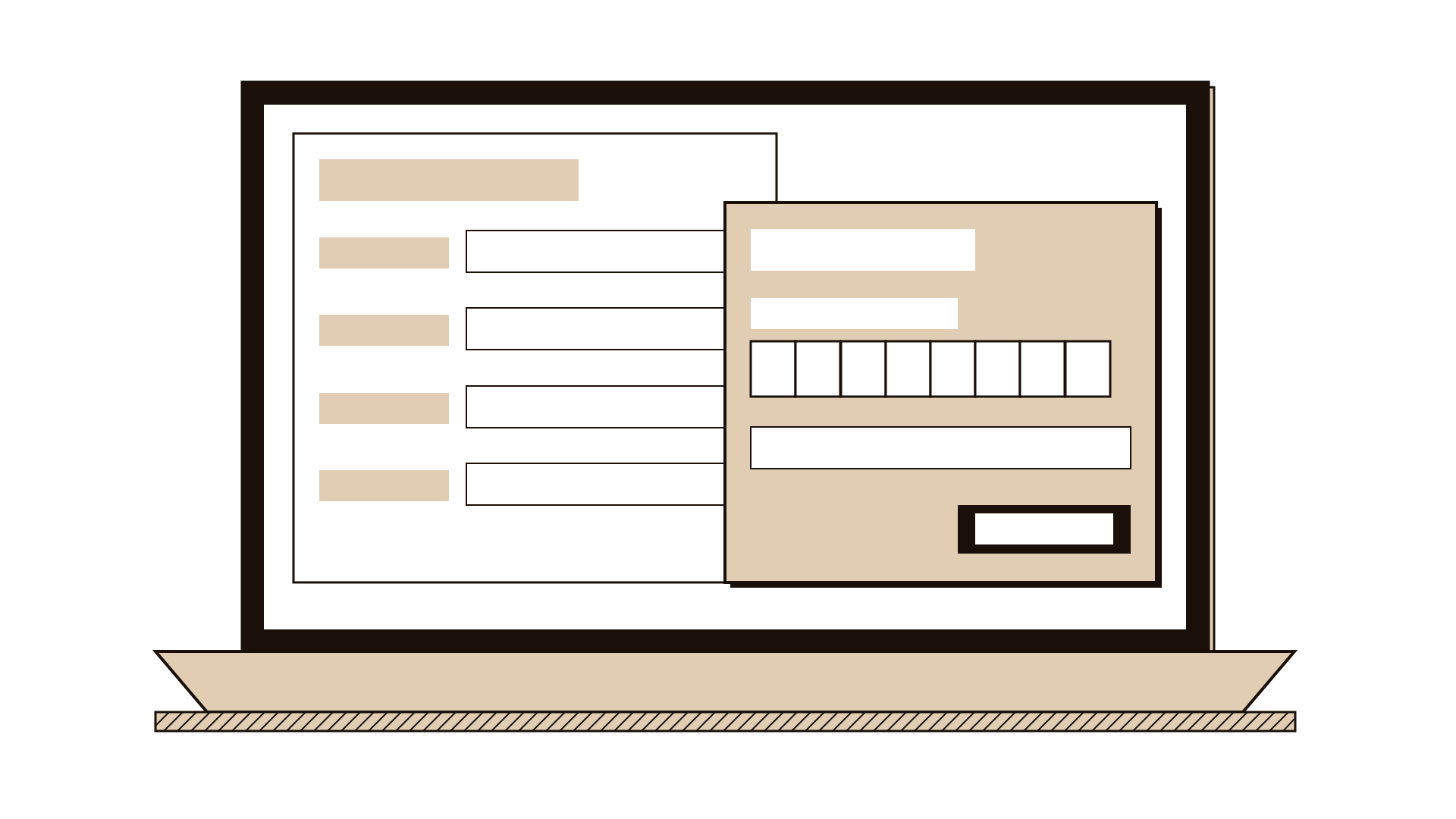
Step 2: Write the success criterion before you start
For each task, fill in Expected success: what counts as done, and any limit on time or help. For example, "Reaches the payment page with the correct licence number, without asking for help, within four minutes." Deciding this in advance stops the team from reading results generously later.
Step 3: Recruit people who match your users
Find five participants who have a reason to use the service and did not design it. Include someone who uses it rarely and someone who finds digital services hard. Explain the purpose, length and what you will record, and ask for consent.
Step 4: Open the session and set the tone
Tell the participant you are testing the service, not them, and that there are no wrong answers. Ask them to think aloud as they go. Say clearly that you will not help during the tasks, and that you will answer their questions at the end.
Step 5: Read each task and stay quiet
Read the task, then watch. Note what they click, where they pause, what they say and what they try first. If they ask you something, return the question: "What would you do if I were not here?" Step in only if they are distressed or fully blocked for several minutes.
Step 6: Ask short follow-up questions
After each task, ask two or three open questions: what they expected to happen, what was confusing, how confident they are that the task is done. Keep these questions neutral and avoid explaining the design.
Step 7: Record observation and result per task
Straight after the session, fill in Observation with what you saw, in plain facts, and Result with pass, pass with difficulty, or fail against the criterion you wrote. Do this before the next session so memories do not blur.
Step 8: Review the round as a team
After five sessions, lay the worksheets side by side. Look for tasks that failed for several people and for the same moment of confusion repeating. Agree the two or three problems to fix first and what you will test next.
Worked example
A municipal licensing team had rebuilt its online shop licence renewal. Call centre staff reported many calls from owners who said they had paid but received no licence. The team ran a moderated usability test with five shop owners using the new renewal pages.
The team chose four tasks: renew a licence, pay the fee, download the renewed licence, and check the renewal status. For payment they wrote the criterion: reaches confirmation with the correct licence number, unaided, within five minutes.
Four of the five owners completed the form quickly. On the payment page, three of them typed their commercial registration number into the licence number field, because both numbers were printed close together on their paper certificate.
The payment went through against the wrong reference, which explained the calls. The field label gave no example and the page showed no preview of the licence being paid for.
The team added the licence name and expiry date above the payment field and a short example of the number format. A second round of five sessions two weeks later showed all participants paying against the right licence.
IllustrativeTips and mistakes
Tips
- Run a pilot session with a colleague from another team to catch unclear tasks before real participants arrive.
- Ask the observer to write only what they see and hear, not what they think it means.
- Test the hardest task in the middle of the session, after the participant has settled but before they tire.
- Share short video clips of key moments with decision makers; one clip often persuades more than a report.
Common mistakes
- Helping the participant when they struggle, which hides the very problem you came to find.
- Writing tasks that name the button or menu, so people follow words instead of showing real behaviour.
- Deciding what counts as success after the sessions, which lets the team call a weak result a pass.
- Treating one participant's opinion about colours or style as a finding, while missing the tasks they could not finish.
What you walk away with
You leave with a worksheet for each session showing, task by task, what was expected, what happened and whether it passed. Together they give a short, evidence-based list of the problems that stop people completing the service, ordered by how many participants they affected and how serious they were. Sort what you heard in a feedback capture grid to plan the next round, and if a fix rests on a belief you are unsure of, turn it into a hypothesis test before rebuilding.
Questions people ask
How many participants do I need for a usability test?
Five participants per round usually reveal the most serious problems for one type of user. If you have very different groups, such as first-time and regular users, plan around five for each. Several small rounds with fixes in between teach you more than one large round.
What is the difference between moderated and unmoderated usability testing?
In a moderated test a facilitator is present and can ask follow-up questions, which shows you why people struggle. In an unmoderated test people complete tasks alone using a tool that records them. Unmoderated tests reach more people quickly, but you lose the chance to probe.
Can I run a moderated usability test remotely?
Yes. A video call with screen sharing works well for digital services. Check the participant's set-up first and share the prototype link only when the task starts. For paper forms or counters, test in person.
Tool card
The worksheet your team fills in, one box per field.
- Task
- Expected success
- Observation
- Result